


Whether your WordPress website has fallen into the hands of unwanted predators or you aim to breathe new life into its appearance and feel, this reliable and robust content management system, unfortunately, only permits you to start from scratch.
We understand that the prospect of hitting reset will lead you back to square one, although this one click is a powerful solution to address many challenges, including technical glitches, performance issues, and site revamping.
If you are too stuck in a similar situation and aware of the need for a reset but unsure about the process, delve into this step-by-step guide discussing a straightforward approach to rebooting a WordPress from Cpanel.
Before you dive deep into the process, be sure to take a backup. So you can upload the latest version and restore your WordPress website like nothing ever happened.
Steps to Reset WordPress from cPanel
Step-1: Log in to your cPanel with your ID and password.

Step-2: On the home page, scroll below to the ‘Databases’ section and click on ‘MySQL Databases.’

Step-3: Find your website’s database in ‘Current Databases’ and tap ‘Delete’, highlighted in the Actions tab.

Step-4: Click on the ‘Create New Database’ option. Upon selection, name your database and tap on ‘Create.’

Step-5: Once the database is created, slide to the Add a User to a Database section, choose your previous username and recently generated database from the drop down menus, and tap ‘Create User.’

Step-6: Trace your steps back to the home page, head straight to the ‘Files’ section & click on ‘File Manager.’

Step-7: In File Manager, tap the ‘public_html’ folder.

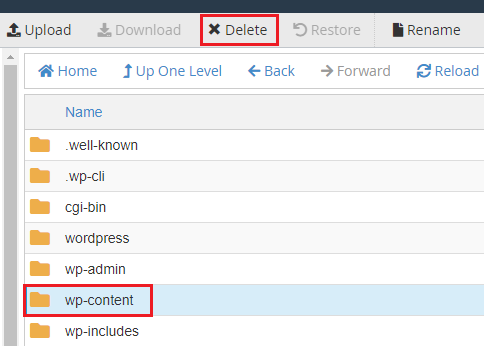
Step-8: choose the ‘wp-content’ folder, and tap the ‘Delete’ option at the top right. Doing so will erase your plugin and theme files, and your website will be reset by now.
Step-9: Now kicks in the main job; refresh the WordPress installation script. Next, head to the browser, search for your domain name and input /wp-admin/install.php at the end.
Step-10: You will notice a form loading on the screen. Enter the information by adding your site title and username and click Install WordPress.
Step-11: You will receive a prompt requesting you to insert your credentials, and voila! That’s how easy it was to change your WordPress password from cPanel.
