


Managing meetings and appointments can be a real hassle, especially when you have to keep track of multiple schedules and email threads.
Thankfully, Roundcube Webmail makes this super easy!
With its built-in Calendar feature, you can create and send event invites directly from your mailbox, saving time and keeping everything organized in one place.
In this guide, we will walk you through the step-by-step process of sending a calendar invitation in Roundcube Webmail, so you never miss another important meeting again.
Let’s get started!
Step-by-Step Guide to Send Calendar Invite in Roundcube Webmail
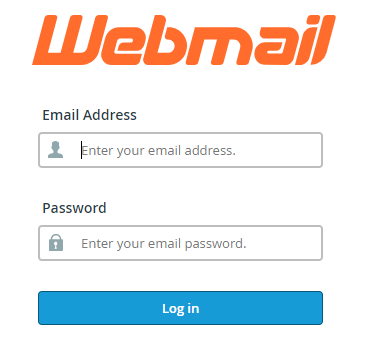
➔ Login to Roundcube Webmail using your username & password.
➔ On the top right navigation menu, click on the ‘Calendar’ icon.

➔ The Calendar interface will open, displaying your current day, week, or month view.
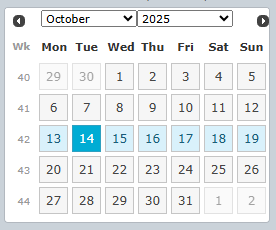
If you are accessing it for the first time, you may see a default calendar already created for you.
➔ Click on the ‘+ New Event’ button (or double-click on a time slot in the calendar).

➔ A pop-up window will appear, allowing you to create a new event.
➔ Fill out the fields as per your meeting schedule:
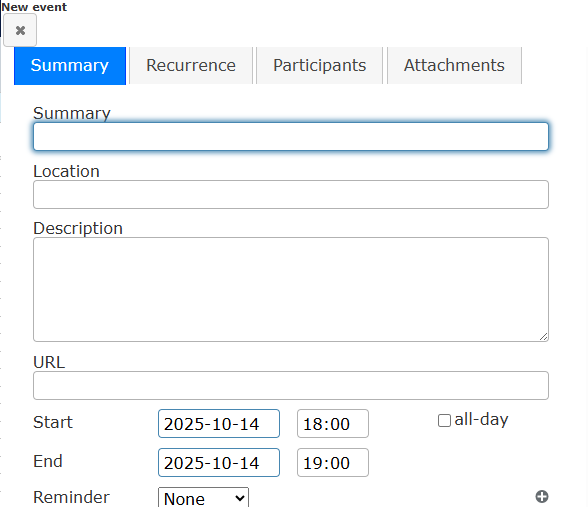
- Summary: Add the event or meeting name (e.g., “Team Meeting”).
- Location: Mention the meeting place or online link.
- Start & End Time: Select the date and duration of your meeting.
- Description: Add notes or the agenda for participants.
- Reminders (Optional): Set a reminder if you want to receive a notification before the event starts.
➔ Look for the ‘Participants’ section in the event window.

➔ You have to enter the email addresses of the people you want to invite.

You can add multiple participants separated by commas.
Roundcube will automatically send an iCalendar (.ics) invite file to all the attendees once you save the event.
➔ Click on ‘Save.’

➔ An email will be sent to each participant containing the calendar invite.
➔ Recipients can then accept, decline, or mark as tentative using their own email client.
Conclusion
And that’s it!
Sending a calendar invite through Roundcube Webmail is as simple as creating an event and adding attendees.
With just a few clicks, you can schedule meetings, manage your events, and keep everyone on the same page, all from your email dashboard.
