


Ever planned a vacation or a short break and worried about missing important emails? Or maybe you just want to acknowledge that you have received an email before you can respond in detail.
That’s where auto replies (also known as vacation messages or out-of-office replies) in Roundcube Webmail come in handy!
An auto reply in Roundcube automatically sends a predefined response whenever someone emails you, just like Gmail. It ensures that your contacts know you’re not ignoring them and gives them clarity on when to expect your reply.
In this guide, we will walk you through the process of setting up an auto reply in Roundcube Webmail.
Methods to Set Up Auto Reply in Roundcube Webmail
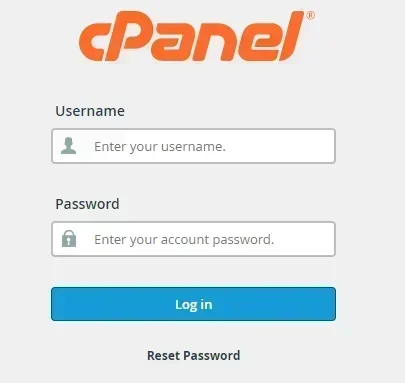
➔ Log in to cPanel with your credentials.
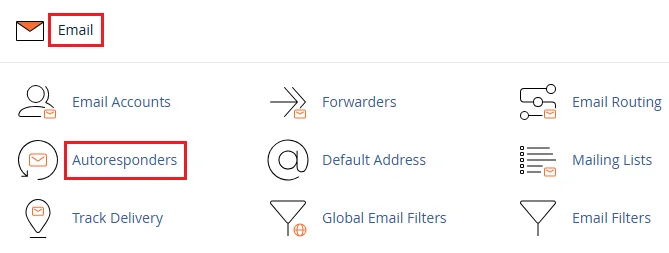
➔ In the ‘Email’ section, navigate to ‘Autoresponders’ & click on it.
➔ If you have multiple domains, select the one associated with your email.
➔ Click ‘Add Autoresponder’
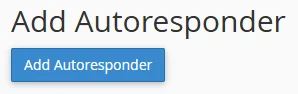
➔ In that, you have to fill out a form to set up your automatic response:
<td "="">Character Set<td "="">Interval<td "="">From<td "="">Subject<td "="">Body<td "="">Start/Stop
|
Field |
What to Enter |
|---|---|
|
You have to leave as the default (usually UTF-8). |
|
|
You have to enter 0 to send an auto-reply immediately, or set hours between replies. |
|
|
Out of Office: I’ll Respond Soon. |
|
|
Write a subject line for the autoresponder (e.g., Thanks for Contacting Us!). |
|
|
You have to write the message you want the user to receive. |
|
|
Set a time range or leave it as the default to make it start or stop immediately. |
Once done, click ‘Create’ and your auto reply will start working immediately.

Best Practices for Auto Reply Messages
➔ Keep it short, clear, and professional.
➔ Mention your return date or availability.
➔ Provide an alternative contact if necessary.
➔ Avoid sharing too much personal information.
➔ Test your auto reply before relying on it.
Conclusion
Setting an auto reply in Roundcube Webmail is a smart way to stay professional and responsive even when you are unavailable. You can set it more reliably in cPanel using Autoresponders.
By following the steps above, you will ensure that every email sender receives a timely acknowledgment, keeping communication smooth and professional.
