


When it comes to email, nothing is more important than your data. This is because your emails may contain business communications, invoices, contracts, or might include some personal memories that you don’t want to lose.
If you are using Roundcube Webmail, it’s always a good practice to take regular backups of your mailbox. Backups not only help you recover from accidental deletions but also safeguard you during server migrations or unexpected technical issues.
In this detailed guide, we will walk you through the best methods to take a backup of Roundcube Webmail emails. Whether you are a beginner or an advanced user, you will find a method that suits your needs.
Methods to Back Up Roundcube Webmail Emails
1. Export Emails Directly from the Roundcube Interface
Roundcube offers you a built-in option to download emails individually. Here are the steps to do this process:
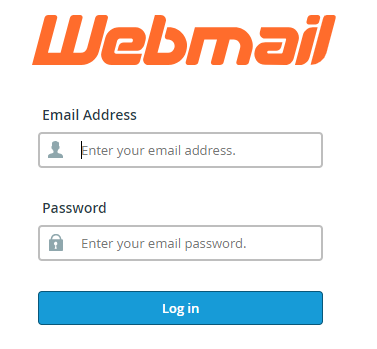
➔ Log in to your Roundcube Webmail account.
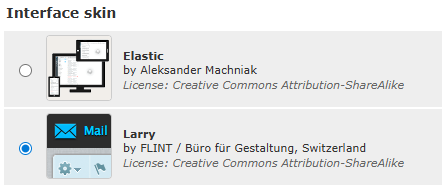
➔ Turn the webmail interface skin into ‘Larry’
➔ Open the folder (e.g: Inbox, Sent, Drafts) where the email is stored.
➔ Select the email you are looking to back up.
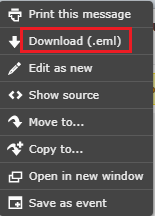
➔ Look for the ‘Download (.eml)’ option in the menu & download it!
➢ What are its Pros?
➔ It’s very simple; no extra tools are required.
➔ It saves emails in universally supported .eml format.
➢ What are its Cons?
➔ It’s time-consuming to back up hundreds or thousands of emails.
2. Backup via cPanel (Full Mailbox Backup)
If you have cPanel access, you can back up the entire mailbox. Here are the steps to do this process:
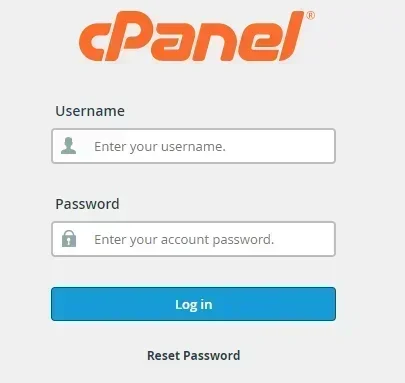
➔ Log in to your cPanel.
➔ Once logged in, go to ‘File Manager.’
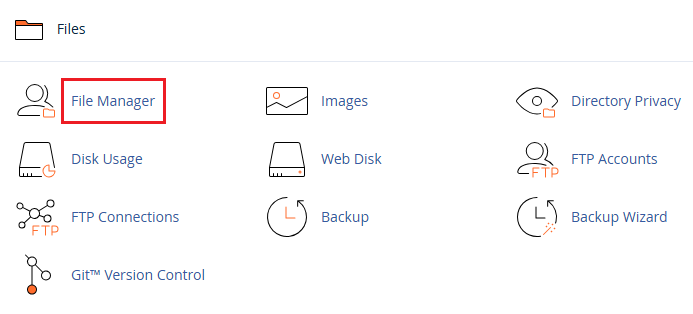
➔ In that Navigate to:
| /home/username/mail/ |
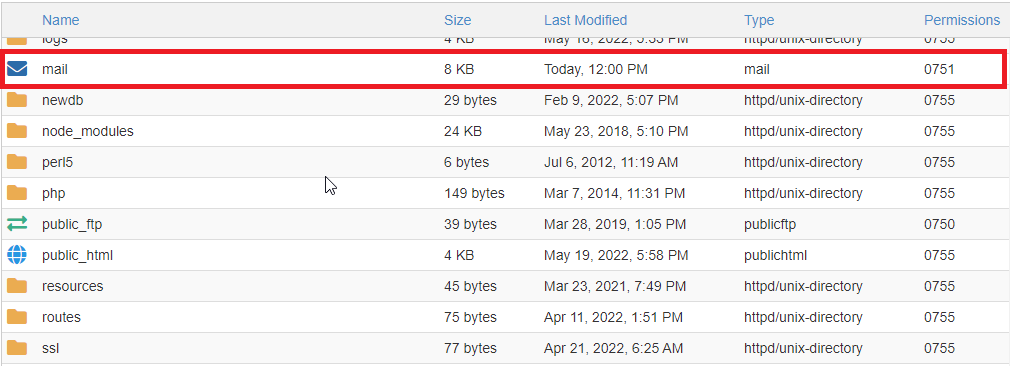
➔ Right-click on the ‘Mail’ option, look for the ‘Compress’ option, and select it. There are various types of compression extensions like .zip, .tar, .tar.gz, .tar.bz2.
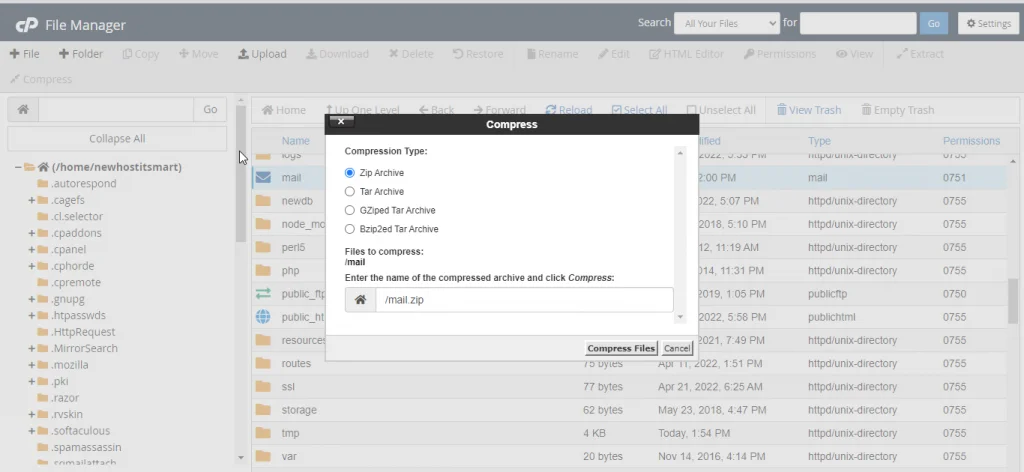
➔ You have to compress and download the folder.
➢ What are its Pros?
➔ It takes a backup of the entire mailbox at once.
➔ It is useful during hosting migration.
➢ What are its Cons?
➔ It requires cPanel access.
➔ You need technical knowledge to restore backed-up files.
Final Thoughts
Backing up your Roundcube Webmail is essential to keep your data safe and accessible at all times.
➔ If you only need a few emails, use the Roundcube export option.
➔ If you want to back up the entire mailbox, use the cPanel backup method.
For maximum safety, consider storing your backups in multiple locations (local computer, external drive, or cloud storage). This ensures that your emails remain secure no matter what happens on the server.
